

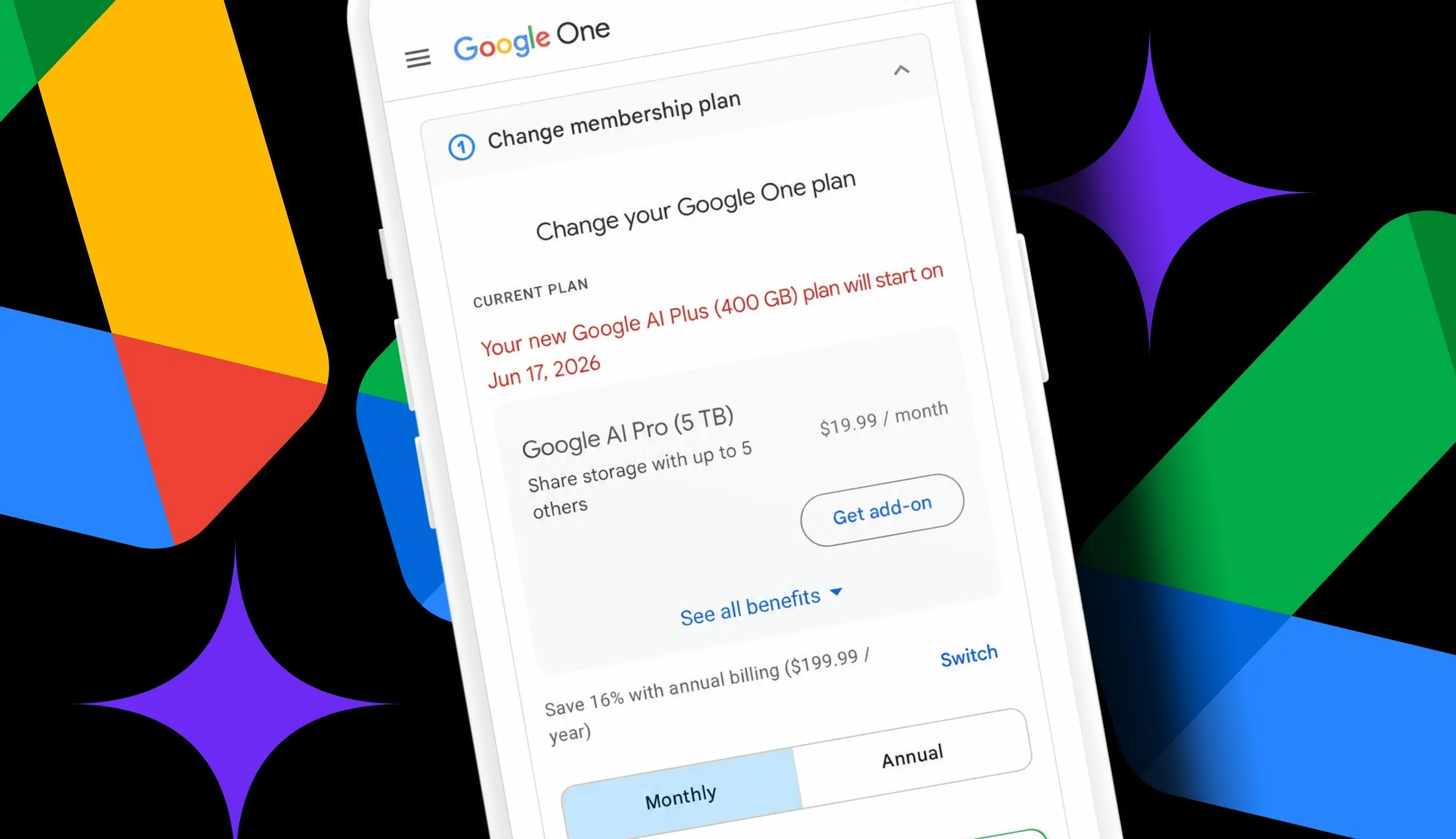
Google’s subscription landscape has become increasingly complex, with a myriad of plans that blend cloud storage and artificial intelligence features. For years, users have been able to choose from various Google One tiers, but the recent integration of Gemini AI has muddied the waters. Now, with Google AI Plus offering 400GB of storage for just $4.99 a month, a significant opportunity has emerged for users to cut costs without sacrificing their essential storage needs.
The key takeaway is simple: downgrading from Google AI Pro to AI Plus could save you $180 a year, provided your storage usage fits within the 400GB limit. This article will walk you through the details, the steps to switch, and what you need to know before making the change.
Understanding Google’s AI and Storage Plans
Google’s storage and AI offerings have evolved considerably. The free tier gives every account 15GB of shared storage across Drive, Gmail, and Photos. For those who need more, Google One plans start with Basic (100GB, no AI) and go up to premium tiers that include Gemini AI features. The top-tier Google AI Pro plan costs $19.99 a month and provides 5TB of storage, plus access to the advanced Gemini 3 Pro model, higher AI usage limits, and extras like YouTube Premium Lite and Google Home Premium.
However, for many users, the AI features are secondary to the storage. A typical long-term Google user might have accumulated hundreds of gigabytes of files, photos, and emails over a decade or more. For example, one user reported having about 340GB of data after 14 years of using Google services. That’s well beyond the free 15GB but well within the 400GB offered by the new AI Plus plan.
Google AI Plus, originally launched at $7.99 a month with only 200GB, was recently revamped to $4.99 a month with double the storage—400GB. This plan includes Gemini access, though with lower usage limits than Pro, and lacks some of the premium extras. There’s also an intermediate option: AI Plus with 2TB for $9.99 a month, which still saves $120 a year compared to AI Pro.
Why Downgrading Makes Sense for Some Users
The decision to downgrade hinges on your actual usage of AI features versus storage. If you rarely use Gemini’s advanced capabilities, the Pro plan’s higher AI limits and extra services may not justify the $15 monthly difference. For users who primarily need storage, AI Plus provides ample space at a fraction of the cost.
It’s important to note that downgrading means losing access to certain features. Specifically, you would forfeit the higher Gemini AI usage limits, the Gemini 3 Pro model, YouTube Premium Lite Individual, Google Home Premium, and Google Health Premium. However, you would retain access to NotebookLM, Google Flow, and the shared storage across up to five family accounts. For many, these trade-offs are acceptable, especially if those premium extras go unused.
Step-by-Step Guide to Switching Google One Plans
Changing your Google One plan is straightforward, whether you prefer the web or the mobile app. Here’s how to do it:
1. Check Your Current Storage Usage
Before making any changes, assess your storage consumption. Go to the Google One dashboard in a browser or open the Google One app on your phone. Ensure you’re signed in with the account tied to your paid storage plan. On the web, you’ll see your current plan at the top and a breakdown of storage used across Drive, Gmail, and Photos. In the mobile app, storage usage appears at the top of the Home screen, with your current plan at the bottom. For instance, if you’re using only 6% of 5TB, you have plenty of room to downgrade to 400GB.
2. Manage Your Plan
Next, navigate to your Google One membership settings. On the web, find the current plan area and click “Manage.” In the app, look for the option to manage membership toward the bottom of the Home screen. Here you’ll see your current plan, benefit details, and other available plans.
3. Change Your Plan
To view cheaper options, you may need to click or tap “See more plans,” as some downgrade options might be hidden. Expand all benefit details and read carefully to understand what you’ll lose by switching. Google currently offers seven tiers, from Basic (100GB, no AI) to AI Ultra (20TB, Gemini Pro). Once you’ve selected the AI Plus plan with 400GB, simply click or tap the button to downgrade. The change will take effect immediately, and your billing will be prorated.
Calculating the Savings
The math is compelling. AI Pro costs $19.99 a month, while AI Plus with 400GB costs $4.99 a month. The difference is $15 per month, or $180 per year. If you opt for the 2TB AI Plus plan at $9.99 a month, you still save $10 monthly, or $120 annually. For a user with 340GB of data, the 400GB plan leaves about 60GB of headroom, which should be sufficient for ongoing emails, documents, and photo backups, assuming regular cleanup.
However, it’s crucial to monitor your storage. If you exceed your quota, Google may restrict your ability to upload files to Drive, back up photos and videos, create new Google Workspace documents, and use Gmail normally. Therefore, the 400GB plan is best for those who can manage their storage carefully or whose data usage is stable.
The Broader Context: Subscription Fatigue and AI Confusion
The revamped AI Plus plan comes amid growing consumer frustration with subscription bloat. Many users pay for multiple services and are looking to trim costs. Google’s own naming conventions have added to the confusion, with “Google One” and “Google AI” plans overlapping. The recent price cut and storage bump for AI Plus seem designed to attract cost-conscious users who want AI features but don’t need the highest limits.
Moreover, as AI becomes more integrated into productivity tools, the line between storage and AI plans will likely blur further. Google’s strategy appears to be bundling AI with storage to encourage adoption. For consumers, the key is to evaluate their actual needs and not pay for features they won’t use.
What to Consider Before Downgrading
Before you switch, take stock of your current usage. Are you using Gemini’s advanced features regularly? Do you rely on YouTube Premium Lite or Google Home Premium? If not, downgrading could be a smart financial move. Also, consider your storage growth trajectory. If you anticipate a surge in data—say, from a new phone with high-resolution photos—you might want to opt for the 2TB plan instead.
Additionally, check if you’re on a family plan. AI Plus allows sharing storage with up to five family members, so ensure the 400GB will accommodate everyone’s needs. If not, the 2TB option provides more breathing room for an extra $5 a month.
Finally, remember that you can always upgrade again if your needs change. Google allows plan changes at any time, with prorated billing. So, starting with the cheaper plan and monitoring your usage is a low-risk strategy.
For those who have accumulated years of digital clutter, now might also be a good time to declutter. Google offers tools to help identify and remove large files, duplicate photos, and unnecessary emails. Freeing up space could allow you to stay on the 400GB plan longer.
The bottom line: for users who need storage more than advanced AI, the new AI Plus plan is a compelling option. It provides 400GB for $4.99 a month, a significant saving compared to the $19.99 AI Pro plan. With a few simple steps, you can cut your annual bill by $180 and still keep your Drive, Gmail, and Photos intact. In an era of rising costs, that’s a win worth considering.
Source: ZDNET News